Blog
Instagram Reels size and dimensions: the 2026 spec guide
The exact Instagram Reels size, aspect ratio, length, file format and safe zones for 2026, plus how to keep captions and buttons off your content so every Reel publishes clean.
Cadenus · 10 July 2026 · 7 min read
Get the size wrong and it shows. A Reel exported at the wrong dimensions publishes soft, letterboxed, or with the client's logo half hidden behind Instagram's own buttons. None of it is hard to avoid, but the specs move often enough that "I think it's 1080 by something" is not good enough when you are shipping Reels for paying clients every week. Here are the exact Instagram Reels size, aspect ratio, length, and file specs for 2026, plus the safe zones that decide whether your text actually survives on screen.
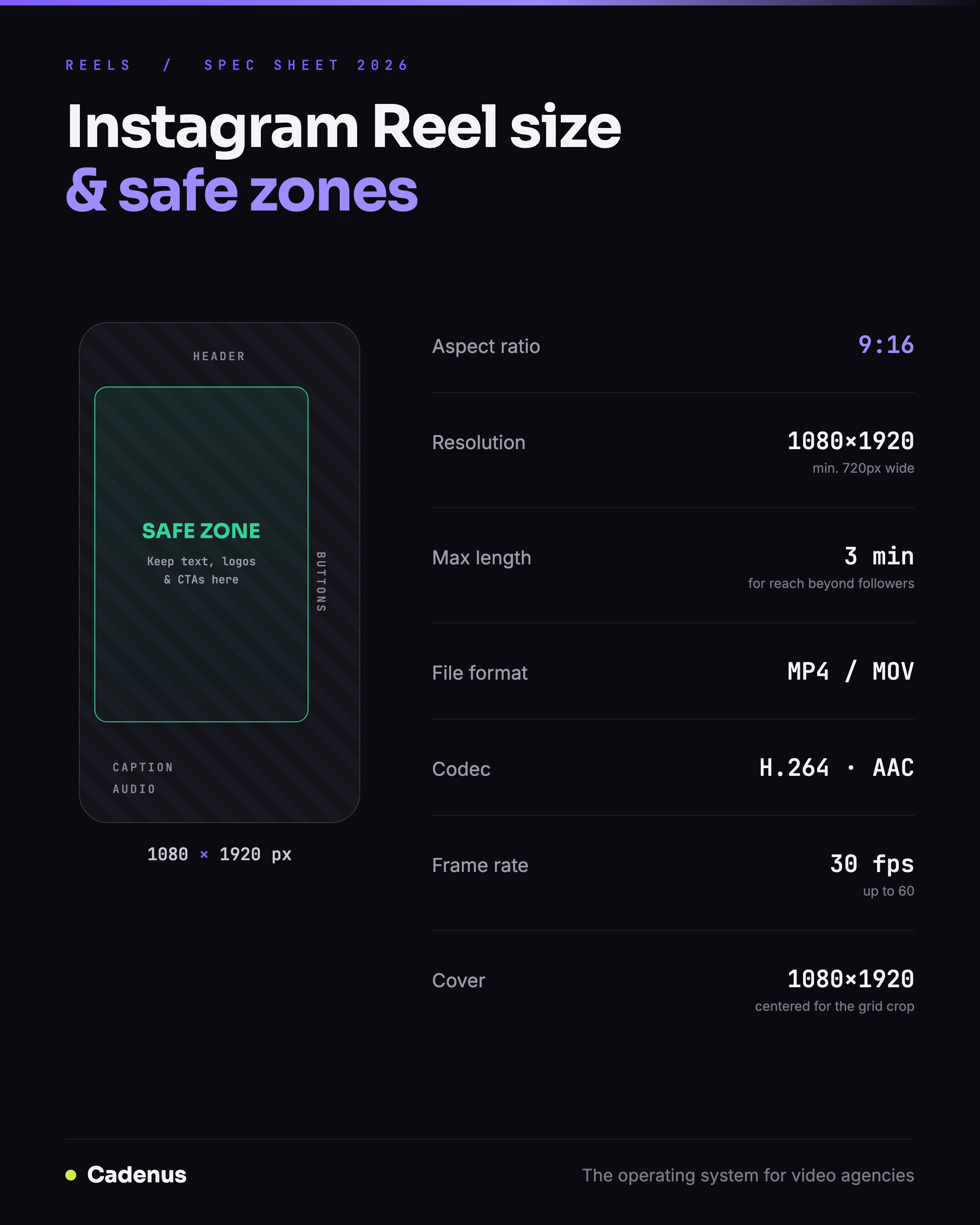
Instagram Reels size and aspect ratio
An Instagram Reel is 1080 by 1920 pixels, a 9:16 aspect ratio, full-screen vertical. That is the number to design and export to, every time. Instagram will accept other ratios and pad or crop them, but 9:16 at 1080 by 1920 is the only combination that fills the screen edge to edge with no bars and no crop.
The practical minimum is a width of 720 pixels, and going below that is where footage starts to look soft on modern phones. There is no benefit to exporting larger than 1080 wide either, because Instagram re-encodes everything down to its own ceiling, so 1080 by 1920 is both the floor for quality and the sensible cap. Set your project, canvas, or timeline to 1080 by 1920 before you start and half the problems below never happen.
The safe zones: where Instagram covers your content
This is the part generic size guides skip, and it is the one that actually costs agencies reruns. Instagram lays its own interface on top of every Reel: the username and audio at the bottom, the like, comment, share, and save buttons down the right, the caption above the bottom edge, and the Reels header at the very top. Anything you place in those areas gets covered.
The rule of thumb that keeps you safe: keep every piece of critical content, text, logos, faces, calls to action, inside the central two-thirds of the frame. Leave roughly the top 15 percent clear for the header and the profile name, the bottom 20 to 25 percent clear for the caption and audio strip, and a margin on the right edge clear for the action buttons. If a subtitle or an end-card CTA has to live near the bottom, lift it up so it sits above the caption line, not behind it. A quick test: play the Reel in the app before it goes to the client and check that nothing important is fighting a button.
If you want the exact boundaries instead of a rule of thumb, we measured Meta's official safe zone file pixel by pixel and turned it into free overlay PNGs for Reels, Stories and the feed crop — drop one on the top layer of your edit and the guesswork is gone. If the same cut also goes to TikTok, the TikTok safe zone pack includes an overlay that satisfies both platforms at once.
How long can an Instagram Reel be?
A Reel can run up to 3 minutes when recorded or trimmed in the app, and longer videos can be uploaded, but length and reach are two different questions. Instagram only recommends Reels of 3 minutes or less to people who do not already follow the account, so a longer Reel largely stays inside your existing audience instead of reaching new viewers through the Reels tab or Explore.
For agency work that usually means the same thing it always does: shorter tends to win. Completion rate is one of the signals that pushes a Reel further, and a tight 15 to 30 second cut is far easier to hold to the end than a three-minute one. Treat 3 minutes as the ceiling for discovery, not a target, and let the story decide the length under it. One reach worry you can drop entirely: scheduling a Reel in advance does not reduce its distribution — here is what the platforms say on the record about schedulers and reach.
File format, resolution and frame rate
Deliver an MP4 or MOV file with H.264 video and AAC audio at 30 frames per second, and Instagram will take it without a fight. It supports up to 60 fps if your footage was shot that way, but a clean 1080 by 1920 H.264 MP4 at 30 fps is the recipe that publishes reliably across every account and device.
The format matters more than people expect. Footage straight off a phone is often HEVC in a QuickTime container, which Instagram sometimes re-compresses hard or rejects at the processing step, and that is a common cause of a Reel that looks worse online than it did in your editor. Exporting to standard H.264 MP4 before you upload removes that variable entirely. If you run production through a tool that transcodes on the way out, this is handled for you, but if you are uploading raw exports, standardize on H.264 MP4.
Reel cover and thumbnail size
The cover uses the same 1080 by 1920, 9:16 frame as the Reel itself, and you can either pick a frame from the video or upload a custom image. The catch is the profile grid: Instagram now previews Reels as a taller portrait crop on your grid, so a cover that looks balanced full-screen can lose its subject when the grid trims the top and bottom.
The fix is to keep the cover's focal point, the face, the headline, the product, roughly centered, so it survives both the full-screen view and the cropped grid preview. For client accounts where the grid is part of the brand, design the cover as a deliberate thumbnail rather than grabbing whatever frame the video happens to land on.
Why your Reel looks blurry or cropped
Almost every "why does this look bad" Reel comes down to one of a few causes. It was exported below 1080 by 1920, so Instagram upscaled it and softened it. It was the wrong aspect ratio, so it got letterboxed with bars or cropped to fit. It was a heavily compressed file or an HEVC export that Instagram re-encoded aggressively. Or the upload happened on a weak connection and the app quietly served a lower-quality version.
The cure is the same in every case: export a 1080 by 1920, 9:16, H.264 MP4 at 30 fps, keep the file at a healthy bitrate rather than crushed down, and upload on a stable connection. Get the source right and Instagram's compression has far less room to hurt you.
A client-ready Reel checklist
Before a Reel leaves your team for a client account, it should clear a short, repeatable check. The canvas is 1080 by 1920 at 9:16. Every caption, logo, and CTA sits inside the central safe zone, clear of the header, caption line, and side buttons. The cut is under 3 minutes, ideally far under. The export is an H.264 MP4 at 30 fps. And the cover is chosen on purpose, with its focal point centered for the grid.
That is five checks, and they are the difference between a Reel that publishes clean the first time and one that comes back for a re-export the morning it was meant to go live. When you are producing at volume across a roster of clients, a shared spec and a review gate are what keep those specs from drifting, and the gate does more work than the spec. If the client signs off on the actual 1080 by 1920 frame before it takes a slot in the calendar, a wrong export never reaches the feed at all. That is the whole job of a social media approval tool, and we compared fifteen of them on what a sign-off actually requires.
Cadenus is built to hold that standard in one place, from the production board to client approval to publishing the Reel natively at the right size, and if you also need to pull a Reel back down to reuse it, we wrote the clean way to download an Instagram Reel.
FAQ
What size should an Instagram Reel be?
An Instagram Reel should be 1080 by 1920 pixels, a 9:16 vertical aspect ratio. That fills the screen with no bars or cropping. Keep the width at least 720 pixels, and there is no need to export wider than 1080 because Instagram re-encodes down to its own ceiling.
What is the safe zone for an Instagram Reel?
The safe zone is the central part of the 1080 by 1920 frame, clear of Instagram's interface. Keep critical text, logos, and calls to action inside the central two-thirds, leaving roughly the top 15 percent clear for the header, the bottom 20 to 25 percent clear for the caption and audio, and a margin on the right for the like, comment, and share buttons.
How long can an Instagram Reel be?
A Reel can be up to 3 minutes when made in the app, and longer videos can be uploaded, but Instagram only recommends Reels of 3 minutes or less to non-followers. For reach, treat 3 minutes as a ceiling rather than a target, since shorter Reels are easier to hold to the end and tend to travel further.
What file format does Instagram use for Reels?
Instagram accepts MP4 and MOV files. The reliable recipe is an MP4 with H.264 video and AAC audio at 30 frames per second. Phone footage is often HEVC, which Instagram can re-compress or reject at processing, so exporting to standard H.264 MP4 before uploading avoids quality loss.
Why does my Reel look blurry after uploading?
Usually because the source was below 1080 by 1920, was the wrong aspect ratio, was a heavily compressed or HEVC file, or was uploaded on a weak connection. Export a 1080 by 1920, 9:16, H.264 MP4 at 30 frames per second, keep a healthy bitrate, and upload on a stable connection, and the result stays sharp.
Sources
- Instagram Help Center, Reel size and aspect ratios on Instagram
- Instagram Help Center, Reels on Instagram