Blog
How to download Instagram Reels (no watermark, any device)
How to download an Instagram Reel without a watermark on iPhone, Android and desktop, when third-party downloaders are safe, and how agencies reuse a saved Reel.
Cadenus · 10 July 2026 · 7 min read
You found a Reel worth keeping. Maybe it is one of your own that a client wants cut down for another platform, a winning post you want to study, or a reference you are pulling for a brief. Saving it should take ten seconds, and for most Reels it does. The catch is that Instagram shows a proper download button in some places and hides it in others, and the third-party tools that fill the gap range from fine to risky. Here is the clean way to download an Instagram Reel on any device, what is actually allowed, and how agencies turn one saved Reel into more work off a single piece of content.
Can you legally download Instagram Reels?
Mostly yes, with one line worth knowing. Your own Reels are always yours to download at full quality, whenever you want. For other people's Reels, Instagram added a native download button, but it only appears on public accounts and the creator can switch it off, so its presence is the signal for whether the platform is offering you the file.
Copyright is the part people skip. A Reel belongs to whoever made it, so saving one for personal reference, inspiration, or a mood board is fine, and re-uploading it as your own content is not. For client work the rule is simple: download your own and your client's content freely, and treat everyone else's as reference, not raw material. If you would not be comfortable telling the creator you saved it, do not repost it.
Download your own Reels straight from Instagram
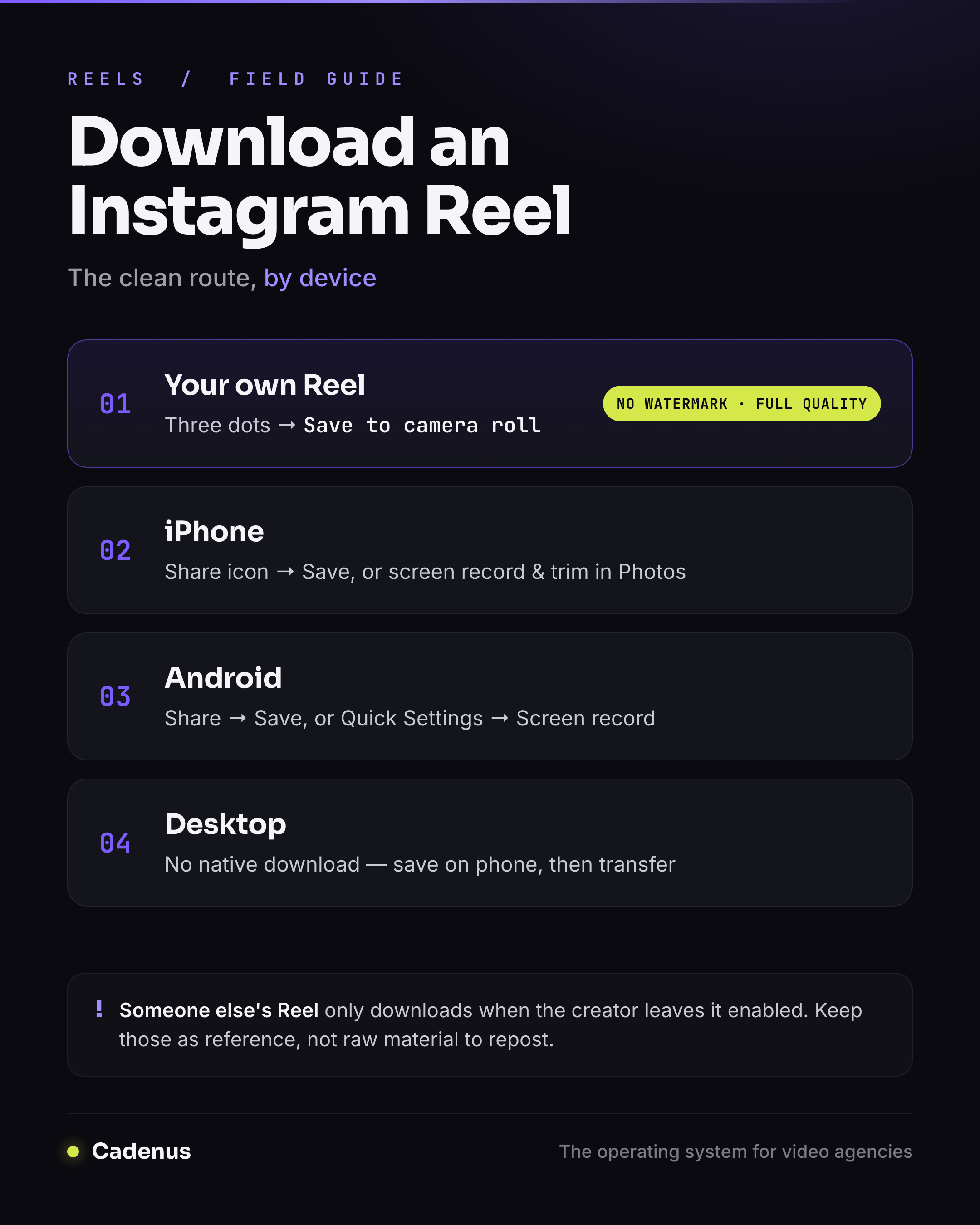
This is the cleanest route by far. No watermark, full resolution, no third-party site in the middle. Open your Reel, tap the three dots, and choose Save to camera roll, or find it under your profile and save it from there. If the Reel is still a draft, Instagram lets you keep it in the app or export it to your camera roll before you ever publish.
It is worth being deliberate here, because this is the only method that gives you a clean file with full quality and no overlay. For anything client-facing, whether you are archiving a delivered Reel or repurposing it for another channel, saving your own original in-app is always the right move over pulling a compressed copy back down from a public link.
How to download Instagram Reels on iPhone
For a Reel you posted, the three-dot menu and Save to camera roll covers it. For someone else's public Reel where download is enabled, tap the paper-plane share icon and look for a save or download option in the sheet.
If there is no download option, the reliable fallback on iOS is a screen recording:
- Add Screen Recording to your Control Center under Settings, Control Center.
- Open the Reel, start the recording from Control Center, and let it play once through.
- Stop the recording, then open Photos and trim the clip down to just the Reel.
Screen recording captures whatever is on screen, so it works when nothing else does, at the cost of a small quality drop and any interface that was visible.
How to download Instagram Reels on Android
The flow mirrors iOS. For your own Reel, use the three dots and Save. For a public Reel with download turned on, use the share icon and look for the save option.
When the button is not there, screen record instead:
- Open Quick Settings by swiping down, and tap Screen record.
- Play the Reel through once, then stop the recording.
- Open Google Photos or your gallery and trim the video to the part you want.
Android phones vary, so the Screen record tile might sit one swipe deeper or carry a slightly different name, but almost every current device has it built in.
How to download Instagram Reels on desktop
Instagram on the web has no native Reel download, which is the first thing to know before you go looking for one. You have three practical options. The first is to save your own Reel on your phone and transfer it to the computer, which keeps the quality intact. The second is a reputable browser-based tool where you paste the Reel URL, with the safety caveats below. The third is a browser or system screen recorder, the same idea as on mobile.
For an agency working from a laptop all day, the steadier answer is not to re-download from Instagram at all. Keep your source files and delivered Reels in your production tool so the clean original is one click away, rather than fetching a re-compressed copy from a public link every time you need it.
Downloading Reels without a watermark
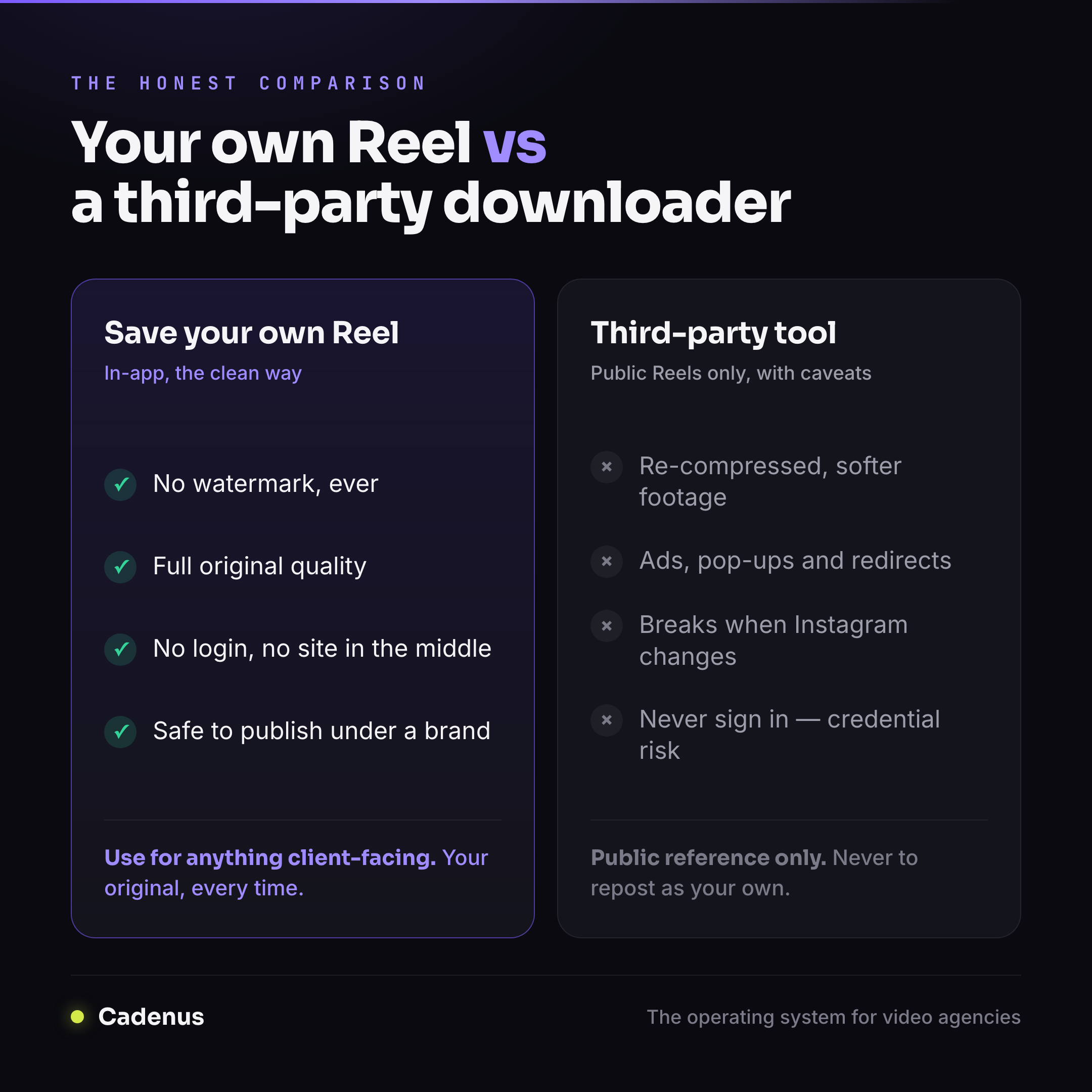
Here is the honest answer most guides dodge. The only method that reliably gives you a file with no watermark and no quality loss is saving your own Reel inside the Instagram app. That is it. Third-party tools that advertise no watermark are stripping Instagram's overlay off a public Reel, which technically works but sits in a gray area and almost always re-encodes the video, so you trade the watermark for softer footage.
The takeaway is practical, not preachy. If the Reel is yours, you never need a downloader and you never have a watermark problem. If it belongs to someone else, removing the watermark does not make reposting it yours, so keep those saves in the reference pile.
Are third-party Reels downloaders safe?
Some are genuinely fine, many are not, and the difference is worth a minute of caution. A few rules keep you out of trouble. Never log in with your Instagram username and password on a downloader site, because a real credential is the one thing worth stealing and no legitimate tool needs it. Expect ads, pop-ups, and redirects, and do not click through them. Assume any given tool can break the moment Instagram changes its page markup. And remember that these sites re-encode video, so the file you get is a copy of a copy.
Use them only for public content, only by pasting the URL and never by signing in, and never for anything you will publish under a brand name. This is exactly why the large social platforms write a guide like this one but do not host a downloader themselves. The reputational and terms-of-service risk is not worth it, and it is not worth it for your agency either.
What agencies do with downloaded Reels
For a team running content across a roster of clients, a saved Reel is rarely the finish line. It is raw material for the next piece. The best-performing Reel of the month becomes three cutdowns for other platforms. A delivered batch gets archived so nothing lives only inside one creator's phone. Strong references from around the niche go into a swipe file that makes the next brief faster to write.
The download is never the hard part. What slows a team down is everything after it: getting the repurposed cut reviewed, approved by the client, and back out on schedule without living in five browser tabs. If that review step is where your month quietly leaks, it is worth choosing a tool for it deliberately rather than inheriting one: we compared fifteen social media approval tools on whether the client can sign off without creating an account. That is the gap Cadenus is built to close. Radar surfaces the outlier Reels in your niche so the reference-gathering is half done before you start, and then production, client approval, and native publishing all happen in one place. Saving a Reel takes ten seconds. Turning it into more finished work, on time and on brand, is the actual job, and it is the one worth systemizing.
FAQ
How do I download an Instagram Reel to my camera roll?
For a Reel you posted, open it, tap the three dots, and choose Save to camera roll. For someone else's public Reel, use the share icon and look for a download option, which only appears if that account allows downloads. If it is missing, a screen recording is the fallback on both iPhone and Android.
Can I download someone else's Reel?
You can download a public Reel when the creator has left downloads enabled, and you should keep it as reference rather than reposting it as your own, since the content is still theirs under copyright. Reels from private accounts cannot be downloaded, and you should not try to work around that.
How do I download a Reel without the watermark?
The only guaranteed no-watermark, full-quality file is your own Reel saved inside the Instagram app. Third-party tools that strip watermarks from public Reels usually re-compress the video and sit in a gray area, so treat a clean save of your own content as the reliable option.
Why is there no download button on some Reels?
Instagram only shows the native download button on public accounts that have kept downloads switched on. If the account is private, or the creator turned downloads off, or the Reel uses certain licensed audio, the button will not appear, and that absence is Instagram telling you it is not offering the file.
Can I download Instagram Reels on a computer?
Instagram's website has no built-in Reel download. The cleanest way is to save your own Reel on your phone and transfer it to the computer. You can also paste a public Reel's URL into a reputable browser tool, or use a screen recorder, keeping the safety and quality caveats in mind.
Sources
- Instagram Help Center, Who can download your Instagram reels
- Instagram Help Center, Save and edit drafts of your reel on Instagram
- Instagram Help Center, Reels on Instagram