Blog
UGC AI Creators: Our Workflow Behind 19M+ Views
How we build UGC AI creators and slideshow stories with Claude, Nano Banana Pro and Higgsfield, then organize the publishing workflow in Cadenus.
Cadenus · 11 September 2026 · 11 min read
Our campaign with UGC AI creators has generated more than 19 million views through slideshows.
The format combines an AI-generated creator, a story told across several slides, and a product that belongs in that story. The work starts with a recognizable character and a situation the audience understands, then follows that character through the sequence.
We use Claude for the concepts and prompts, Nano Banana Pro to generate the UGC AI creators and their scenes, and Higgsfield to connect the two. Giving Claude access to Higgsfield's generation tools brings the image-making step into the same conversation as the creative brief.
Here is a practical walkthrough, including a six-slide example and prompts you can adapt. The example below was created to explain the workflow; it is separate from the slideshows behind the 19 million total.
From a story worth swiping
to content ready to publish.

- 01 / STRATEGYClaude
- 02 / IMAGESNano Banana Pro
- 03 / CONNECTIONHiggsfield
- 04 / PUBLISHINGCadenus
Start with a story worth swiping through
A slideshow asks the viewer to make a decision several times: stay, swipe, or leave. An attractive first image gets the story onto the screen. Each following slide needs to give someone a reason to continue.
Before generating anything, choose the audience and the action you want the story to lead to. For an app, that might be visiting its profile or checking a feature. For a service business, it might be recognizing a problem and opening a relevant guide.
Then collect a small set of recent posts in that niche. Look for a structure that appears in several successful posts, ideally from more than one account. A repeated format is a useful hypothesis to test; a single large view count cannot tell you what caused the result.
Record the opening line, what the first image communicates, when the product appears, and how the ending resolves the beginning. Read the comments for clues: are people discussing the story, asking about the product, or reacting to an unrelated detail?
Save an explanation of the format alongside the example. “A familiar frustration, a small change, and a visible consequence” gives you something to build with. “This got lots of views” does not explain the creative choice.
Give Claude examples before asking for ideas
The brief gets better when Claude can inspect the actual material. Supply the slide images or a transcription in order, along with any performance information you have. A URL alone is not always enough for an assistant to see a social post.
Use this analysis prompt:
Analyze these slideshow examples as a content strategist. For each one, identify the opening promise, the information withheld, the job of every slide, the moment the product appears, and the payoff. Separate what is visible in the examples from your hypotheses about why they performed. Do not infer retention, conversion, or audience demographics from view counts. Extract three reusable storytelling structures without copying the original wording, people, or images.
The output should make the sequence understandable. For example:
| Part of the story | What it needs to accomplish |
|---|---|
| Familiar problem | Give the viewer something specific to recognize. |
| Missing explanation | Create a question the next slide can answer. |
| Small intervention | Introduce the change, feature, or product. |
| Visible consequence | Show what happens after the change. |
| Payoff | Resolve the opening promise. |
| Next step | Offer an action that fits what the viewer just saw. |
Once you have that structure, ask for new concepts:
Using the structures above, propose ten original slideshow concepts for [audience] and [product]. Give each a first-slide hook, a one-sentence story, a product moment, and a payoff. Use different situations, not ten rewrites of the same conflict. Every concept must fit into six slides. Avoid invented testimonials, fabricated product results, and claims the product cannot support. Rank the concepts by clarity and how naturally the product fits.
Pick a few concepts you can explain out loud without adding background. If the hook requires a paragraph of context, simplify it before spending anything on images.
Write all six slides before generating images
Here is an illustrative concept for a task app: someone repeatedly postpones a personal project, then changes a vague reminder into one small action.
The creative idea is “make the next step small enough to start.” The app belongs in the story because editing a reminder is part of the action. There is no need for a surprise sales pitch at the end.
| Slide | On-screen copy | Visual direction |
|---|---|---|
| 01 · Hook | “I kept ignoring the same reminder.” | A closed laptop at the end of the day. |
| 02 · Recognition | “Work on your side project.” | A simple editorial reminder card. |
| 03 · Change | “So I changed what it asked me to do.” | A quiet desk; the reminder is being rewritten. |
| 04 · Product moment | “Open the file. Five minutes.” | The revised reminder, using a real product screen when available. |
| 05 · Consequence | “That gave me somewhere to start.” | A hand opening the laptop. |
| 06 · Payoff | “Make the first step smaller.” | The workspace in use, with a relevant next step in the caption. |
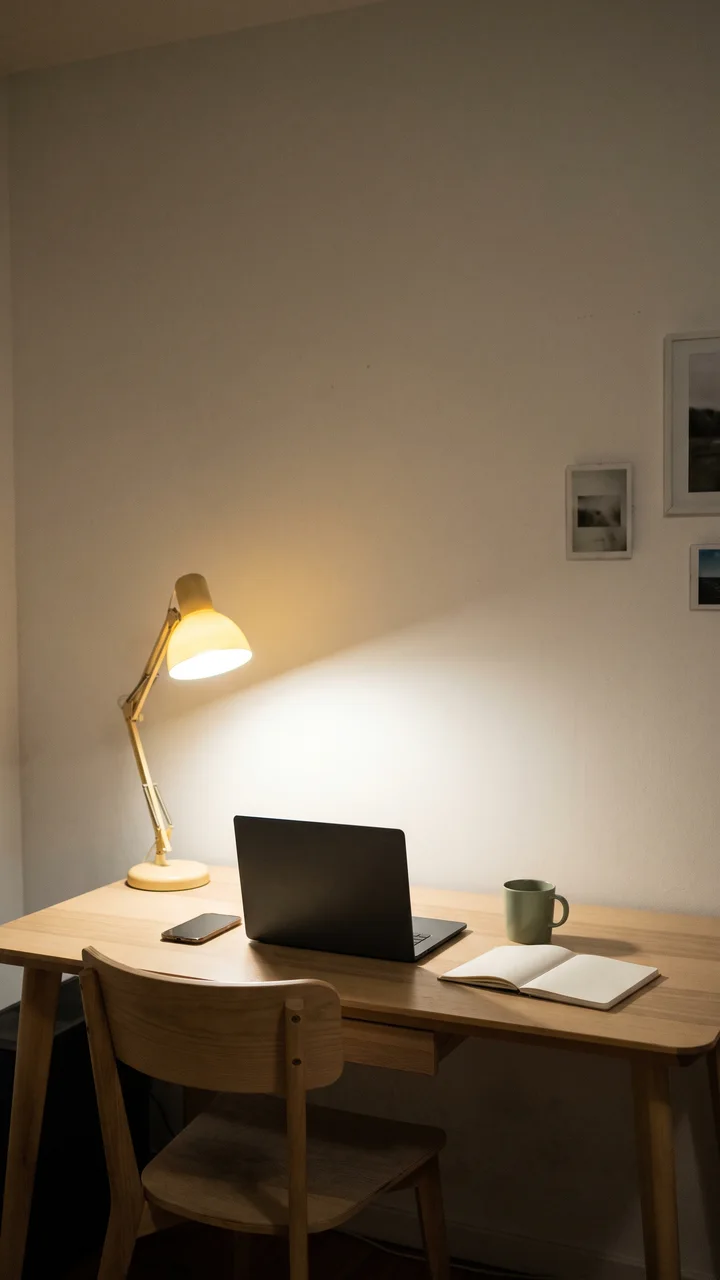
The hook
A specific, familiar frustration opens the story.
This is a sample script, not a customer testimonial. The photographs were generated through Higgsfield for this article; their generation records identify Nano Banana 2. The production walkthrough below specifies Nano Banana Pro. The reminder cards are editorial illustrations, not screenshots of an app.
For a real campaign, replace the product moment with the actual interface and a feature you can demonstrate. If you have a real user story, its details are usually more useful than a more dramatic fictional outcome.
Before moving on, read only the captions. Then look only at the visual brief. Both should describe the same progression. If slide five needs an explanation from slide two that never appears on screen, fix the storyboard now.
Connect Claude to Higgsfield and choose Nano Banana Pro
Claude handles the brief and calls the connected generation tools. Nano Banana Pro is the image model; Higgsfield provides access to it. These are different parts of the workflow.
For a reproducible setup, Higgsfield documents a Claude connection through MCP:
- Open Claude's Settings → Connectors.
- Add a custom connector named Higgsfield with the URL
https://mcp.higgsfield.ai/mcp. - Connect and sign in to your Higgsfield account.
- Ask Claude to check the available image models and select Nano Banana Pro explicitly.
The official Higgsfield setup page describes this connection. It is a supported way to give Claude access to generation tools without building your own API wrapper. If you already have a custom API integration, the creative sequence below is the same, while its setup will depend on your implementation.
Start with a small request:
Check the connected Higgsfield image tools and confirm that Nano Banana Pro is available. Show the supported aspect ratios, reference-image inputs, and the estimated cost for three images at the selected resolution. Then prepare generation requests for the approved storyboard. Keep the model set to Nano Banana Pro.
Check the current usage terms before a batch. Web-app allowances and connector usage can differ; the Higgsfield model page distinguishes those surfaces. This workflow does not depend on an assumed unlimited generation allowance.
Build a consistent UGC AI creator
A UGC AI creator is an AI-generated persona used to tell a product story in a creator-style format. The character gives the slideshow a point of view: someone encounters a problem, tries a feature, and takes the next step. This can be a sequence of still images; the format does not require a talking avatar or a video in every slide.
Start with a short creator brief: apparent age, appearance, wardrobe, environment, tone, and relationship to the product. Choose details that make sense for the audience and the scenario. A student using a study app and a business owner organizing client work need different settings and different stories.
Generate and approve a reference image of the creator before building the full sequence. Reuse that approved reference when generating the next scenes, and check the face, hair, clothes, recurring objects, and setting across all the slides. The creator should remain recognizable as the action changes.
Ask Claude to keep those decisions in a shared visual brief and change only the scene-specific action, expression, framing, or lighting that the story needs. That brief becomes the basis for each Nano Banana Pro prompt sent through Higgsfield.
For our demonstration, the recurring details are a pale oak desk, a graphite laptop, a sage mug, and a quiet home workspace. The photographs use ordinary available light. That gives the sequence a recognizable setting without requiring a face to match across every frame.
Here is an adaptable image prompt:
Documentary smartphone photograph for a vertical slideshow. A lived-in home workspace with a pale oak desk, graphite laptop, sage ceramic mug, and warm off-white wall. Natural available light, realistic materials, subtle grain, imperfect everyday framing. Scene: an adult's hand begins opening the laptop beside a notebook. No visible face. Leave the upper quarter visually quiet for a caption added later. No logos, watermark, charts, or legible interface text. Use the attached approved reference to preserve the environment and recurring objects.
The prompt describes what the image must communicate. It also leaves room for the caption. A busy background behind the hook can make an otherwise good image unusable on a phone.
For a recurring person or product, supply an approved reference image you have the right to use. Generate one frame first, inspect it, and use the accepted reference for subsequent scenes where the model supports that input. Reference images help; they do not remove the need to check continuity.
Keep important on-screen copy separate from the photograph. Add it in a consistent layout after generation so spelling, line breaks, contrast, and placement stay under your control. Use real screenshots for product interfaces rather than asking an image model to invent the UI.
Generate a small batch, then review the sequence
A useful first batch is one concept with a few alternative openings. That is enough to judge whether the visual direction supports the story before you generate an entire content calendar.
Give Claude a production instruction with a clear definition of finished:
Generate the approved scenes with Nano Banana Pro through Higgsfield. Use the storyboard order and approved references. Keep captions separate from image generation. Track each request by concept and slide number. Return the completed images with their generation status; identify failed or missing slides. Do not replace the requested model silently. Stop after this batch so I can review the sequence before any new generations.
Review the images as a slideshow at phone size. Look for four things:
- Story: does each slide move the idea forward?
- Continuity: do the person, objects, and environment remain believable?
- Readability: can someone read the caption without zooming?
- Product accuracy: does the screen or feature match what you actually offer?
A beautiful frame that interrupts the story still needs replacing. Often the repair is a shorter caption or a different crop. Sometimes the scene needs another generation. Make the smallest useful change and inspect the sequence again.
Move the finished content into a publishing workflow
Once the assets are ready, the next problem is practical: which version is approved, which caption belongs with it, which account should receive it, and when it should go out.
Package each slideshow as a complete unit: numbered images, final caption, target account, intended format, publishing time and timezone, and approval status. Keep rejected images outside the final folder.
This is where Cadenus fits. Its content calendar and publishing workflow give that finished content a place in the schedule. For client work, use the approval workflow to settle the final version before it enters the queue.
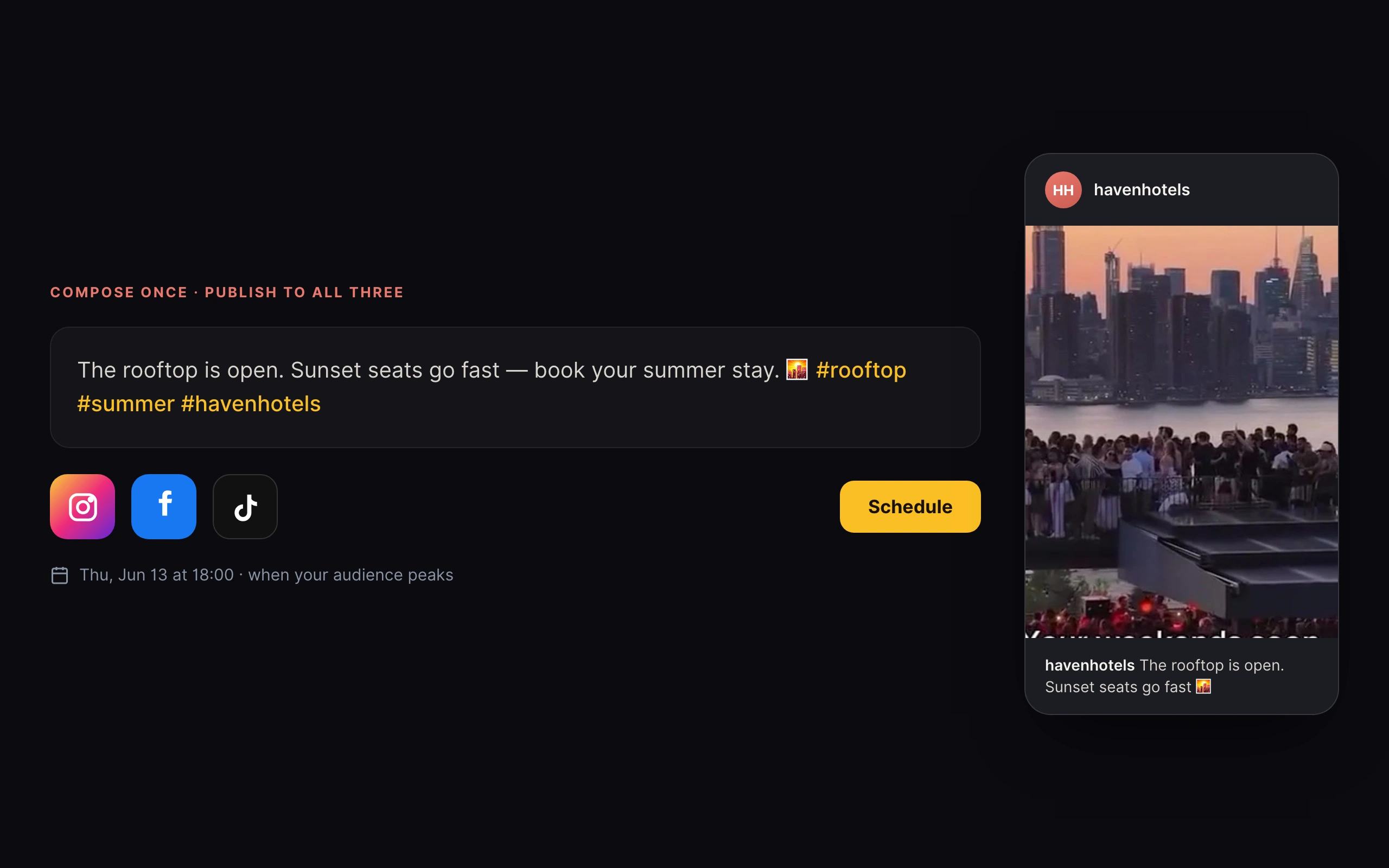
If you want the assistant involved in the handoff, Cadenus Connect exposes publishing tools to compatible AI clients. Our Instagram MCP guide covers the upload and scheduling sequence, account selection, and status checks.
Keep the publishing format explicit. An Instagram carousel, a TikTok photo post, and a slideshow exported as a video have different upload requirements. Check support for the intended format in the connected publishing tool before preparing the final handoff. Generating six images does not automatically make them a scheduled post.
An organization prompt can be as simple as:
Turn these approved slideshow folders into a publishing plan. For each concept, list the ordered files, exact caption, target account, format, proposed date and timezone. Flag missing assets and unsupported formats. Keep the approved version intact. Prepare the plan for review before scheduling.
That keeps the content, the decision, and the next action together. When several concepts or client accounts are involved, that context matters as much as the assets themselves.
Measure the next batch against your own baseline
The 19 million view total is an aggregate result. It is not a promise that a particular prompt, image model, or posting frequency will reproduce it.
For a useful test, compare posts after the same amount of time has elapsed. Record the concept, opening line, visual variation, account, publication time, views, saves, shares, and the action that matters to the business. Where available, include completion or slide-retention data. Keep missing metrics blank rather than estimating them.
Look at the pattern across comparable posts. If several versions of one concept perform well against the account's normal results, test another variation. Change one major element at a time so you have a chance of learning what made the difference.
Do not use a universal cutoff such as “kill anything below 3,000 views.” A useful result depends on the account, the audience, the time window, and the objective. A post that brings qualified product interest can be worth repeating even when another post attracts more views.
The next batch should answer a question: does a clearer opening help, does an earlier product demonstration fit better, or does a shorter sequence make the story easier to follow?
Build your first batch
Start with one audience, one UGC AI creator, one real product feature, and one six-slide story. Give Claude a handful of references, approve the character, and write the sequence before generating the scenes. Connect Higgsfield, select Nano Banana Pro, and make enough material to review the idea properly.
Then put the finished version somewhere it can be approved, scheduled, and found again when you review the results.
Download the slideshow prompt pack for the research, concept, storyboard, generation, and publishing-plan prompts in one file.
When you have the assets ready, see how Cadenus Connect handles the publishing handoff.