By Cadenus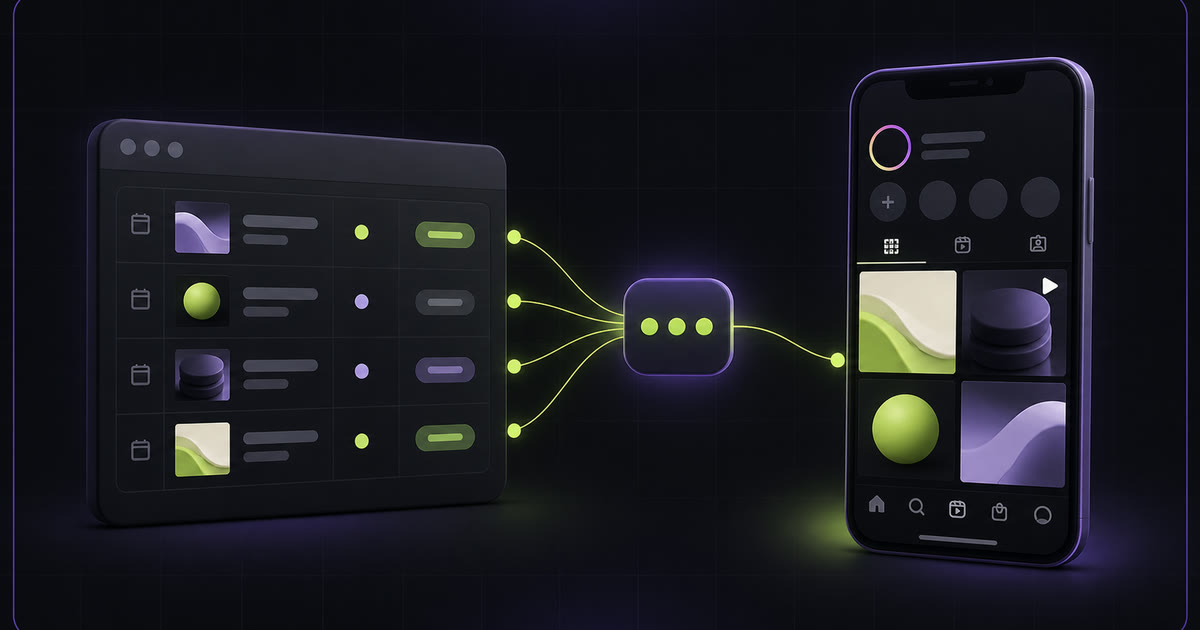
On this page
- 01The quick answer
- 02Why Notion can't post on its own
- 03Route 1: copy and paste
- 04Route 2: Notion automations
- 05Route 3: Zapier, Make or n8n plus a social media tool
- 06What makes DIY connections fail
- 07Route 4: let Cadenus publish for you
- 08How to post from Notion with Cadenus
- 09What you can publish from Notion
- 10Which route fits you
- 11FAQ
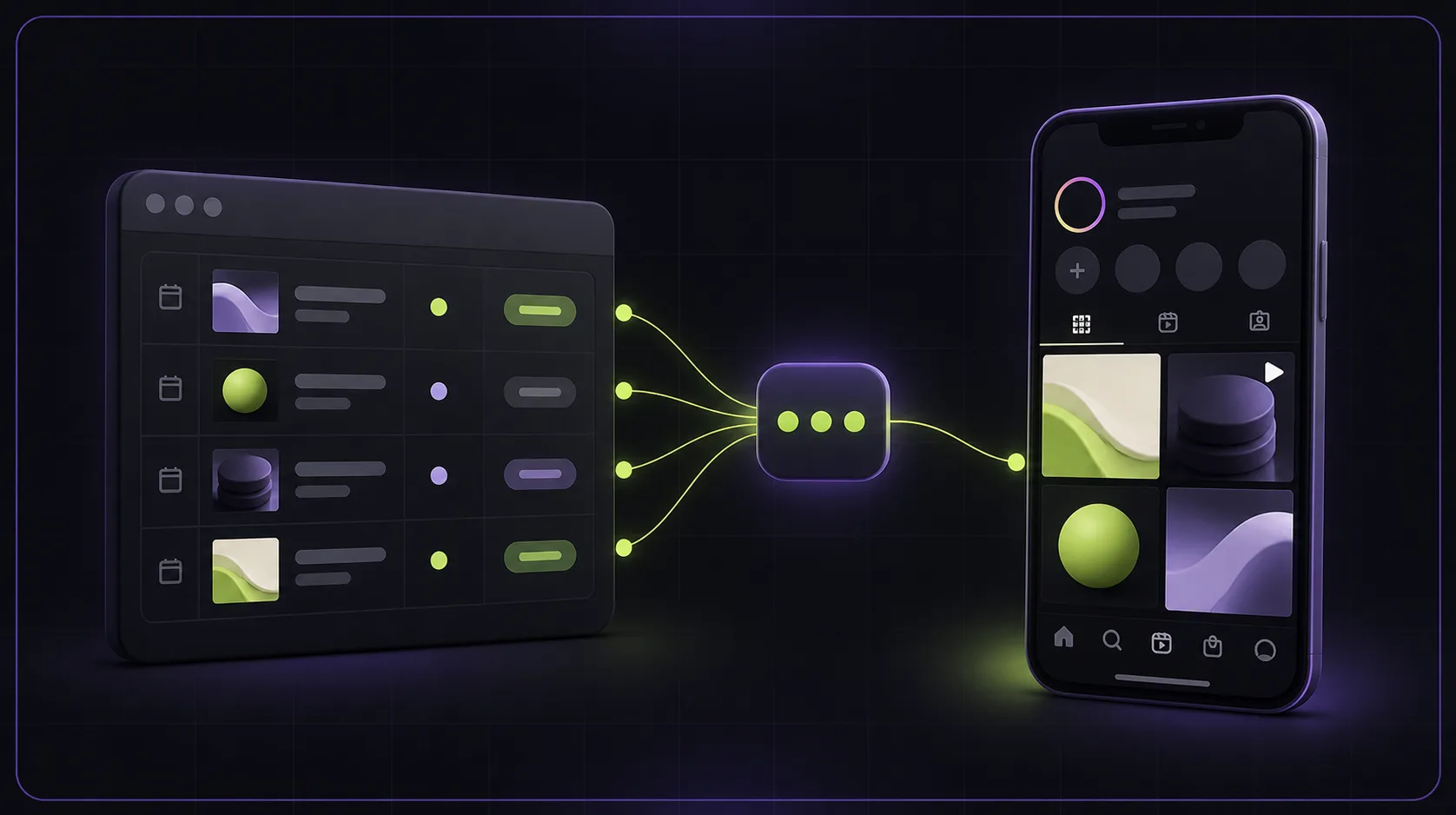
To post to Instagram from Notion, use one of four routes: copy the row by hand, use a Notion automation, connect Zapier, Make or n8n to a social media tool, or connect Cadenus directly to your database. Notion holds the plan; Cadenus can publish the post for you.
That distinction matters. Notion can hold every post you will publish this month, but it cannot send one to Instagram on its own. The right route depends on how often you publish, whether you handle video, and how much setup you want to manage yourself.
The quick answer
| Route | Cost | Handles video | Breaks when |
|---|---|---|---|
| Copy and paste | Free | Yes, by hand | You have more than a few posts a week |
| Notion automations | Free | No | You still need another publishing tool |
| Zapier, Make or n8n + a social media tool | Two subscriptions | Sometimes | More setup and maintenance |
| Cadenus connected to Notion | One subscription | Yes | Nothing you have to maintain |
If you post twice a week from one account, stop at route one, it's free and it works. If you run content for clients, skip to what makes DIY connections fail, because those problems decide whether building the connection is worth your time.
Why Notion can't post on its own
Notion is excellent for planning: it stores captions, media, dates, owners and approval statuses. What it does not include is a built-in Instagram publisher. Something else has to read the row and send the post at the right time.
That's the honest frame for everything below: you're not looking for a hidden Notion feature. You're choosing who does the posting and how much setup you want to manage yourself.
Route 1: copy and paste
Open the row, copy the caption, download the file, open Instagram, upload, paste, post.
It costs nothing, it never breaks, and it is genuinely the right answer for a single account with a light schedule. It also puts a person at a phone at 18:00, which is exactly the thing that stops scaling the day you're posting for someone else. Every route below buys back that moment and nothing more.
Route 2: Notion automations
Notion has database automations that can send a row to another app when a property changes, Notion documents this use case, such as changing a Status to "Ready".
That automation can tell another tool that a row is ready. It still cannot publish to Instagram by itself; you need a second service to receive the information and send the post. It can work, but you are building and maintaining the connection.
Route 3: Zapier, Make or n8n plus a social media tool
The most common DIY route connects Notion to Zapier, Make or n8n, then passes the post to a separate social media tool. It works, and the Make community is full of people building versions of it.
Count the real cost before you start:
- Two subscriptions, not one, the automation tool, plus the social media tool.
- A build day, mapping every property and testing each platform's quirks separately.
- You are the maintainer. When the connection changes or a step fails, you have to find and fix it.
- The failure is silent. A scenario that errors sends you an email from the automation tool, not a note where you're actually looking, the Notion row still says "Ready" while nothing shipped.
For text and single images this route is fine. Video is where it stops being fun, and the next section is why.
What makes DIY connections fail
Notion's file links expire. Notion confirms that links for files uploaded to a page are temporary. A DIY connection can work in testing, then lose access to the image or video before the scheduled time.
The free Notion plan caps uploads at 5 MB. Notion documents the 5 MB per-file limit on its Free plan. That is smaller than many Reels. If your calendar carries video and you're on a free workspace, you may need to link to Drive, Dropbox or another storage service instead, and whatever you build has to follow that link.
Video is less forgiving than images. A Reel can look fine on your computer and still fail when Instagram receives it. A reliable service handles that work for you and tells you clearly if the post could not go live.
Those are everyday problems, and they are why a simple-looking DIY connection often becomes another tool you have to watch.
Route 4: let Cadenus publish for you
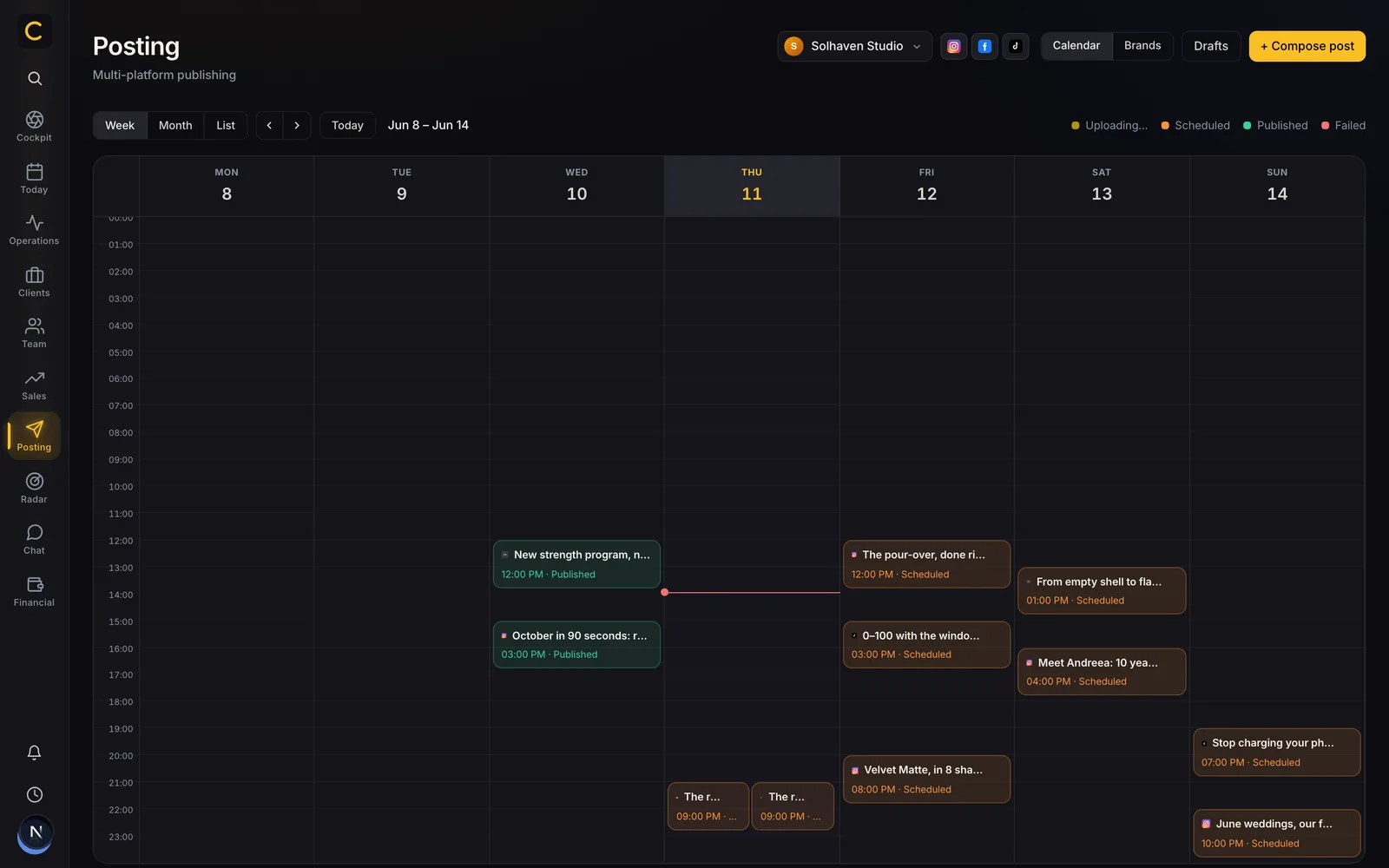
The fourth option is to let Cadenus do the job. You keep planning in Notion, Cadenus publishes at the chosen time, and the result comes back to the row you already use.
That's what the Cadenus Notion social media scheduler does at €19 a month. Connect your database once, keep planning in Notion, and Cadenus publishes to Instagram, TikTok, Facebook, LinkedIn, X and YouTube. The status and live link come back into the same Notion row, so you always know what went out.
It is worth knowing where that stops. A connection publishes; it doesn't run an agency. If a client has to approve a video before it goes out, that's a different job and a different plan, the recorded yes before the slot, not the slot itself.
How to post from Notion with Cadenus
The setup takes five steps:
- Connect your Notion workspace. Choose the content calendar database you already use.
- Map five properties. Match your existing Status, Publish date, Caption, Channels and Media properties. You can keep the names and views your team already uses.
- Connect Instagram. Select the Instagram professional account you want to publish to.
- Prepare the row. Add the caption and media, choose Instagram, set the publish time and move the status to Ready.
- Read the result in Notion. Cadenus publishes at the chosen time, then writes Published and the live Instagram link into the row. If the post cannot go live, you see the reason there too.
You do not need to duplicate a template or rebuild a mature database. A new workspace can start from the Cadenus template; an existing calendar only needs its properties mapped once.
What you can publish from Notion
| Instagram format | Cadenus support | What the Notion row needs |
|---|---|---|
| Single-image post | Yes | Image, caption, publish time, Instagram selected |
| Carousel | Yes | Ordered images, caption, publish time, Instagram selected |
| Reel | Yes | Video, caption, publish time, Instagram selected |
| Story | Not supported | Use Instagram or Meta Business Suite for now |
Cadenus publishing requires an Instagram professional account. Personal accounts can still use Notion as their content calendar, but they need the copy-and-paste route.
Want the direct route? Start a 7-day Cadenus trial, connect your Notion calendar and let Cadenus publish for you.
Which route fits you
One account, a few posts a week: copy and paste. Keep the Notion calendar for planning, and don't pay for anything.
Text and images, and you enjoy building: Notion automations or an automation tool. Budget a day, and accept that you own it.
Video, several accounts, or client work: connect Cadenus once and let it publish for you. You avoid the second subscription, the DIY setup and another connection your team has to watch.
FAQ
Can Notion post to Instagram directly?
No. Notion is a database with no built-in Instagram publisher. A connected service such as Cadenus reads the rows and publishes the posts for you.
Can I automate Instagram posts from Notion for free?
The fully free option is to keep the calendar in Notion and publish by hand. Automatic publishing needs a connected service; Cadenus costs €19 a month and handles the posting for you.
Why does my scheduled post from Notion fail on video?
Common causes are an expired Notion file link, the 5 MB upload limit on a free Notion workspace, or a video that Instagram cannot accept. With Cadenus, the reason appears in the same Notion row instead of disappearing into a separate automation log.
Can I schedule Reels and TikToks from Notion?
Yes. Add the video and caption to the Notion row, select the channel and publishing time, and Cadenus handles the rest. You can schedule Instagram Reels and TikTok videos from the same database.
What Instagram account do I need to publish from Notion?
Cadenus publishing requires an Instagram professional account. Personal accounts can still use Notion as a content calendar, but they need the manual copy-and-paste route.
Do I need to rebuild my Notion database?
No. A connected scheduler maps your existing properties, Status, date, caption, channels, media, to the ones it needs. Duplicating a ready-made template is faster if you're starting from nothing, but an existing calendar with two years of rows in it doesn't have to be touched.