Blog
How to schedule YouTube Shorts: the native way and the agency way
How to schedule YouTube Shorts natively in YouTube Studio — free, with no date cap — plus the strike freeze and Pacific-Time quirks that make scheduled Shorts misfire, and when a scheduling tool with client approval earns its place.
Cadenus · 23 July 2026 · 6 min read
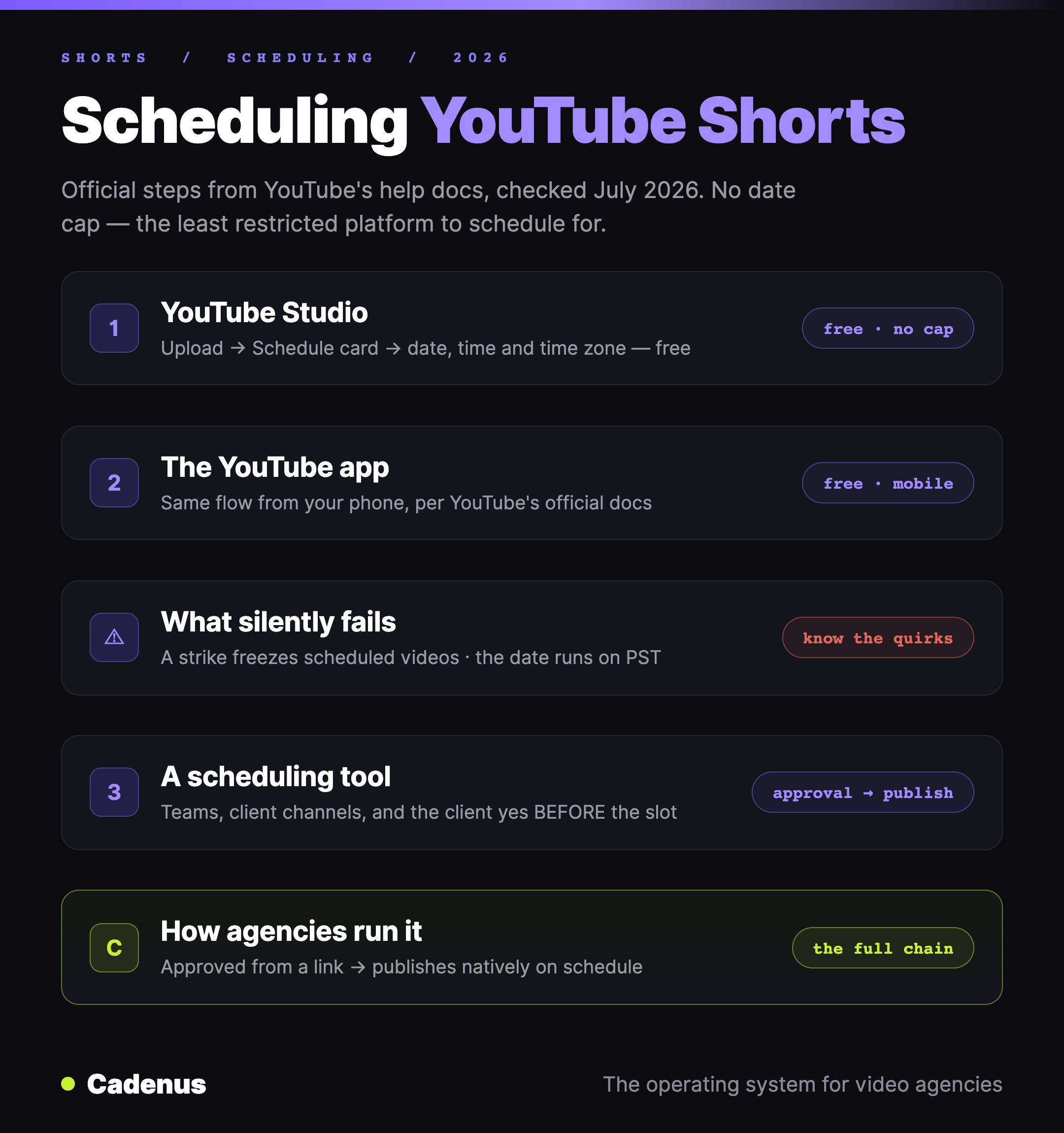
You can schedule a YouTube Short natively, for free, with no documented limit on how far ahead — which makes YouTube the least restricted platform to schedule for. The catch list is short but real: a Community Guidelines strike silently freezes your scheduled videos, and the date shown under a published video runs on Pacific Time, not yours. This guide uses YouTube's own help documentation, checked in July 2026.
The quick answer
| Method | Cost | How far ahead | Best for |
|---|---|---|---|
| YouTube Studio (desktop) | Free | No cap documented | Your own channel |
| The YouTube app | Free | No cap documented | Scheduling from your phone |
| A scheduling tool | Paid | Months, plus approvals | Teams and client channels |
If you run one channel, YouTube Studio is genuinely enough — read the next two sections and stop. If you post Shorts for clients, the scheduling is the easy half of your problem — jump to the agency section.
What counts as a Short
A vertical or square video up to 3 minutes. That's the whole definition — there is no special upload switch, and you don't need a #Shorts hashtag. Format and length decide how YouTube treats the upload, so a 9:16 video under 3 minutes becomes a Short on its own.
Schedule a Short in YouTube Studio
The steps, per YouTube's help center:
- Sign in to YouTube Studio — or use the YouTube app.
- Select Create, then Upload videos.
- Select your vertical video and fill in the details.
- On the visibility step, click the Schedule card.
- Set the date, the time and the time zone.
- Select Schedule.
Until that moment arrives, the Short sits as a private video with a timer. To change the time later: Content → select the video → Edit → Visibility — keep it private and edit the schedule, or flip it to Public to publish immediately.
The quirks that break scheduled Shorts
A strike freezes your schedule. Straight from YouTube's documentation: if your account gets a Community Guidelines strike, scheduled videos won't publish during the penalty period. They're set to private, and — the part everyone misses — they do not resume on their own. You have to reschedule each one after the penalty ends.
The date under the video is Pacific Time. The "Published on" date on the watch page runs on PST. Schedule a Short for 1:00 AM on the 24th in Bucharest and the watch page can say the 23rd. Irrelevant to reach, very relevant when a client checks whether "the launch Short went out on launch day."
Studio is a list, not a calendar. YouTube Studio shows your scheduled uploads as a content list per channel. Fine for one channel; blind for eight. There is no view of "next week across everything I manage."
When a scheduling tool earns its place
The same three situations as every platform: you manage several channels, you work as a team, or a client needs to approve the Short before it goes live. And if you've heard that publishing through a tool hurts performance, it doesn't — here's what the platforms actually say about schedulers and reach.
For client work, the schedule slot is the last step of a chain: the Short gets edited, the client watches it, the client says yes, the yes gets recorded — then the video deserves a date. That order of operations is what Cadenus runs: the client approves from a magic link — no account, every decision recorded — and the approved video publishes natively as a YouTube Short at its scheduled time, in the same calendar as TikTok, Instagram, Facebook, LinkedIn and X. For choosing among tools, we compared the field honestly in the best social media scheduler for agencies.
Which method fits you
A creator with one channel: YouTube Studio. Free, no window cap, and the strike caveat will likely never touch you. A brand with one channel, planned from desktop: also Studio — add a shared content doc for the plan. An agency posting for clients: a tool — not for the slot itself, but for the approval before it, the record of who said yes, and one calendar across every channel you run. That chain is what we build — here's how agencies run it.
FAQ
Can you schedule YouTube Shorts?
Yes, natively and for free. Upload the Short in YouTube Studio or the YouTube app, choose Schedule on the visibility step, and pick a date, time and time zone. Scheduling works the same for Shorts as for regular videos.
How far in advance can you schedule YouTube Shorts?
YouTube documents no maximum — unlike Instagram's 30-day or TikTok's 10–30-day windows, you can schedule Shorts weeks or months out. The practical limit is your content plan, not the platform.
Why didn't my scheduled Short publish?
The documented cause: a Community Guidelines strike. During the penalty period scheduled videos won't publish — they sit as private, and you must reschedule them manually once the penalty ends. If there's no strike, check the time zone you picked on the Schedule card.
Do scheduled Shorts get less reach?
No. There's no evidence YouTube treats a scheduled upload differently from a manual one — the video is uploaded either way; only the go-public moment is timed. Consistency, which scheduling makes easier, helps more than any posting-method superstition.
How do agencies schedule client Shorts?
Approval first, slot second. The client should sign off on the Short before it gets a date — in Cadenus the client approves from a link, and the approved video publishes natively to YouTube at its scheduled time, alongside the TikTok and Instagram versions of the same content.
Sources
- Official steps and the strike caveat: Schedule video publish time — YouTube Help, checked July 2026.
- The reach question, answered with sources: Do scheduling tools hurt your reach?
- Choosing the tool: The best social media scheduler for agencies